
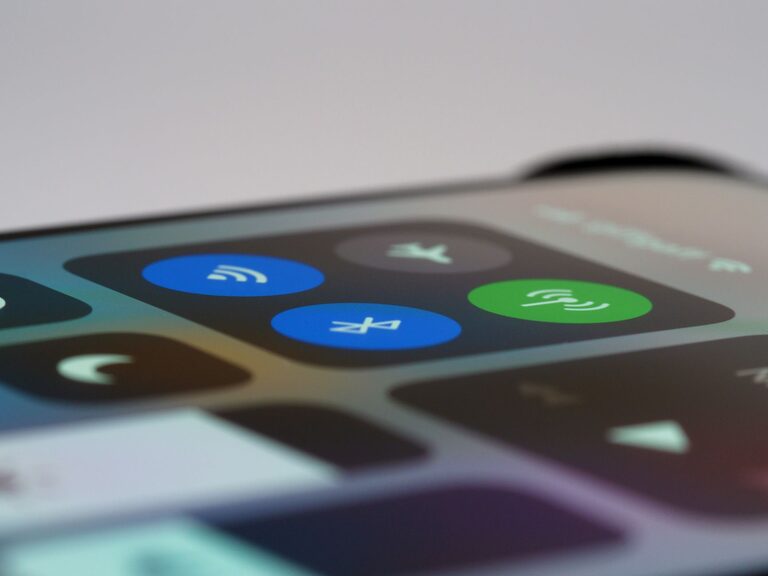
In today’s digital world, notifications from our devices constantly vie for our attention. While they can keep us informed and connected, too many alerts can become overwhelming, disrupt our focus, and impact our well-being. Setting clear boundaries with notifications is essential to maintaining control over your time and mental space. This guide provides practical tips for managing notifications effectively.
Why Set Boundaries with Notifications?
Notifications are designed to grab your attention, but frequent interruptions can lead to stress and reduced productivity. By creating boundaries, you can:
– Reduce distractions and improve focus
– Lower stress levels and avoid burnout
– Create dedicated time for work, rest, and socializing
– Foster healthier tech habits
Step 1: Assess Your Current Notifications
Before making changes, understand which notifications you receive and how often. Spend a day or two paying attention to:
– Which apps send you alerts
– The types of notifications you get (messages, updates, reminders)
– When notifications tend to arrive most frequently
This awareness helps you identify unnecessary or low-priority alerts.
Step 2: Prioritize Important Notifications
Not all notifications are equally important. Decide which alerts you truly need to see immediately, such as:
– Calls or messages from family or close friends
– Work-related urgent emails or apps (if applicable)
– Calendar reminders for important events
By prioritizing these, you can reduce noise and only be interrupted for crucial updates.
Step 3: Customize Notification Settings
Most smartphones and apps allow you to customize notification settings. Here’s how to optimize them:
– Turn off non-essential notifications: Disable alerts for apps that aren’t important or check them manually instead.
– Use “Do Not Disturb” mode: Schedule quiet hours during work or sleep time when notifications are muted.
– Set notification tones: Choose different sounds or vibrations for important contacts or apps so you can recognize alerts quickly.
– Control lock screen alerts: Limit the amount of information shown on your phone’s lock screen to reduce distractions.
Step 4: Establish Notification-Free Zones and Times
Physical and time boundaries help limit interruptions:
– Create phone-free zones: For example, avoid using your phone at the dining table or in the bedroom.
– Set specific times to check notifications: Instead of responding as they arrive, designate intervals during the day to review alerts.
– Use app timers: Some devices let you set daily limits on app use, which can reduce notification overload.
Step 5: Utilize Technology Tools
Several tools and apps can help with notification management:
– Focus modes: Features available on many devices that block distractions based on activity (e.g., work, reading, sleeping).
– Notification summaries: Some systems bundle less urgent notifications into a summary you can review later.
– Third-party apps: Apps that filter or prioritize notifications based on your preferences.
Experiment to find what works best for your routine.
Step 6: Communicate Your Boundaries
Let friends, family, and colleagues know your notification preferences, particularly if you limit responsiveness during certain times. This helps set expectations and respect for your focus periods.
Step 7: Regularly Review and Adjust
Technology and priorities change, so review your notification settings periodically. Adjust them to suit new apps, work schedules, or lifestyle changes.
—
Bonus Tips for Maintaining Balance
– Turn off unnecessary email alerts: Many emails don’t require immediate attention; switch to manual checks.
– Practice mindfulness: When a notification arrives, pause before responding to decide if it needs immediate action.
– Keep your device’s software updated: Updates often include better notification controls.
Conclusion
Notifications are useful, but without boundaries, they can overwhelm your day. By assessing, prioritizing, customizing, and communicating your notification preferences, you can reclaim your focus and reduce stress. Start with small changes and tailor your approach for a healthier digital balance.
Feel free to share your own tips or ask questions in the comments below!
About the Author